Gameplay & Screen Recordings Mode — AI Video Enhancer for Captures
Level up your captures. Gameplay & Screen Recordings Mode sharpens fast-motion gameplay and crisp UI text so your clips look clean at any resolution.
Drop your video here or click to upload
MP4 or MOV — up to 4K. Your file stays private.
100% free to try. Files are processed privately and removed automatically.
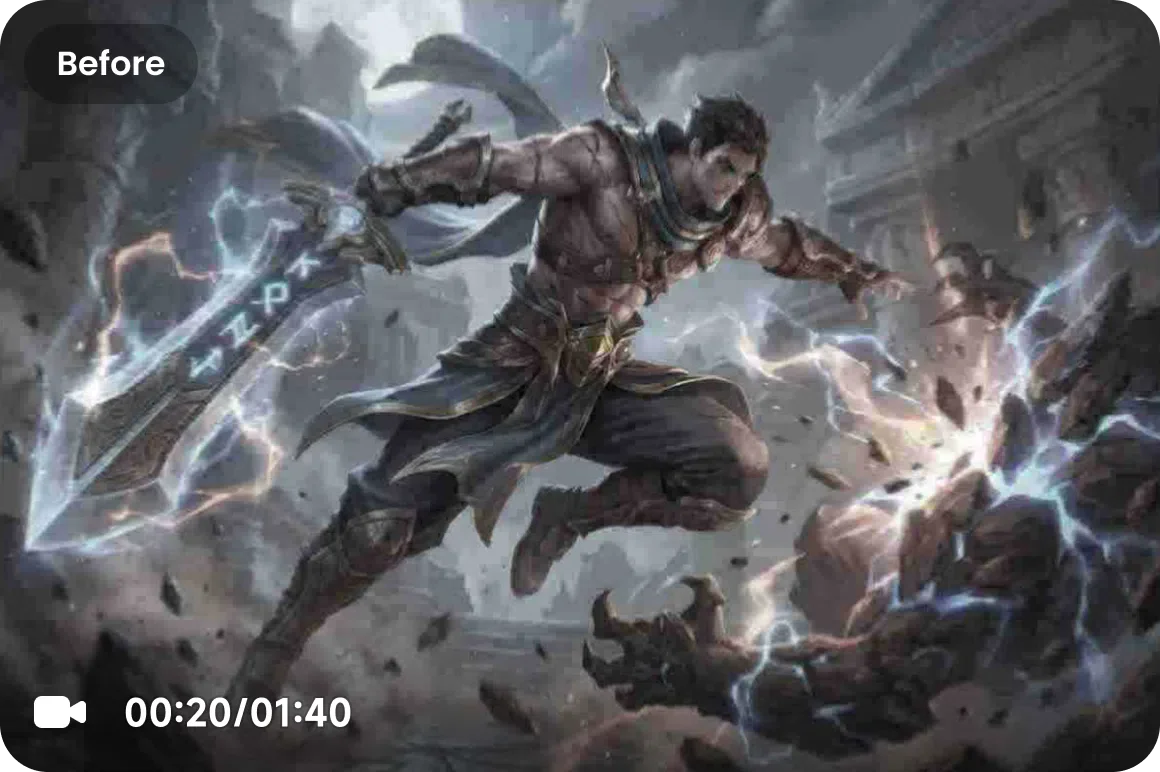
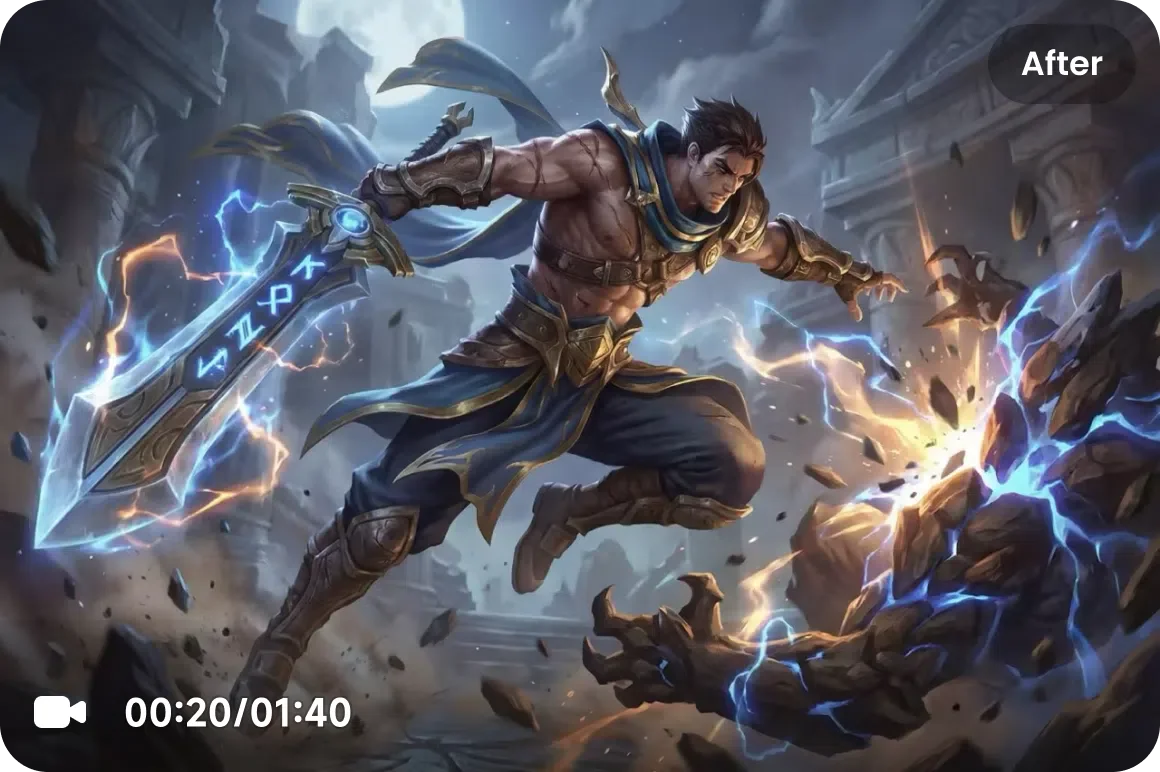
What Gameplay & Screen Recordings Mode Does
Gameplay & Screen Recordings Mode targets the compression blur that wrecks fast-motion gameplay and on-screen UI. It sharpens edges, recovers small text and HUD elements, and stabilizes detail during rapid camera movement — so streamed clips, highlight reels, and tutorial recordings stay crisp instead of turning into a smeary mess after upload.
When to Use This Mode
Use Gameplay & Screen Recordings Mode for any capture:
- Gameplay highlights and montages for YouTube or TikTok.
- Stream VODs and clips that got crushed by platform compression.
- Software tutorials and screen recordings with small UI text.
- Fast-motion footage where edges and HUDs go soft.
How It Works in 3 Steps
Upload Your Capture
Upload your gameplay clip, stream VOD, or screen recording.
Select Gameplay & Screen Recordings
Pick the Gameplay model so the AI sharpens motion, edges, and UI text.
Download the Result
Preview the before/after, then download your enhanced video as a standard MP4 file ready for any platform.
Discover Other Enhancement Modes
De-AI Mode
Restore a natural, authentic look to videos created by AI models like Sora, Kling, Runway, and Seedance. Our video enhancer removes the tell-tale artificial smoothness and digital artifacts.
Portrait Restoration Mode
Bring faces back into focus. Portrait Restoration Mode sharpens facial detail, skin texture, and hair on any footage of people for stunning, natural close-ups.
Product Enhancement Mode
Make every product look its best. Product Enhancement Mode delivers crisp, color-accurate eCommerce and ad video that drives clicks and conversions.
Low-Light & Night Repair Mode
Rescue footage shot in the dark. Low-Light & Night Repair Mode brightens, denoises, and recovers detail lost in shadows and nighttime scenes.
Gameplay & Screen Recordings Mode
Level up your captures. Gameplay & Screen Recordings Mode sharpens fast-motion gameplay and crisp UI text so your clips look clean at any resolution.
Anime & Animation Mode
Give animation the clarity it deserves. Anime & Animation Mode cleans line art, boosts color, and upscales animated footage without muddying the look.
Frequently Asked Questions
Yes. This mode is tuned to recover small text, HUD elements, and UI so tutorials and gameplay overlays stay sharp and legible.
It can. The model targets the exact artifacts that platform re-encoding introduces, restoring crisp edges to clips that looked smeary after upload.
Yes. The AI stabilizes detail during rapid camera movement, so high-action gameplay stays sharp instead of dissolving into blur.